If you want a link-in-bio tool that gets out of your way and helps you publish something quickly, Linkie makes a strong first impression. I tested it from a practical, hands-on perspective, and the biggest thing that stood out to me was how clean and simple the interface feels.
There are plenty of tools in this category that try to do everything. That can be useful, but it can also slow you down. Linkie seems built for people who want to create a simple page, add a few important links or embeds, and start using it without getting buried in options.
What follows is a walkthrough of how Linkie works, what features matter most, and where it feels especially useful for creators, consultants, local businesses, and service providers who need a clean link hub.
Disclosure: This post may contain affiliate links that will allow you to purchase various products and/or services. This means that I/we may receive an affiliate commission if you click on the link(s) and decide to purchase. There is no additional cost to you. See my disclosure for more information.
Table of Contents
- A very simple setup from the start
- The page structure is intentionally lightweight
- A useful feature I do not often see: email collection
- The three content card types that power the page
- Layout choices that are simple but practical
- Analytics that cover the basics without overcomplicating things
- Site settings and domain options
- Who Linkie is best for
- My overall take
- FAQ
A very simple setup from the start
Linkie uses the domain structure link.bio/your-slug, and you can customize that slug to match your name, brand, or campaign. I created a page using my own name, and the setup was straightforward.
One thing I liked immediately was that the editing screen almost acts like a live preview. You are not jumping between a bunch of disconnected tabs. The main page sits in the center, and the controls are easy to find.
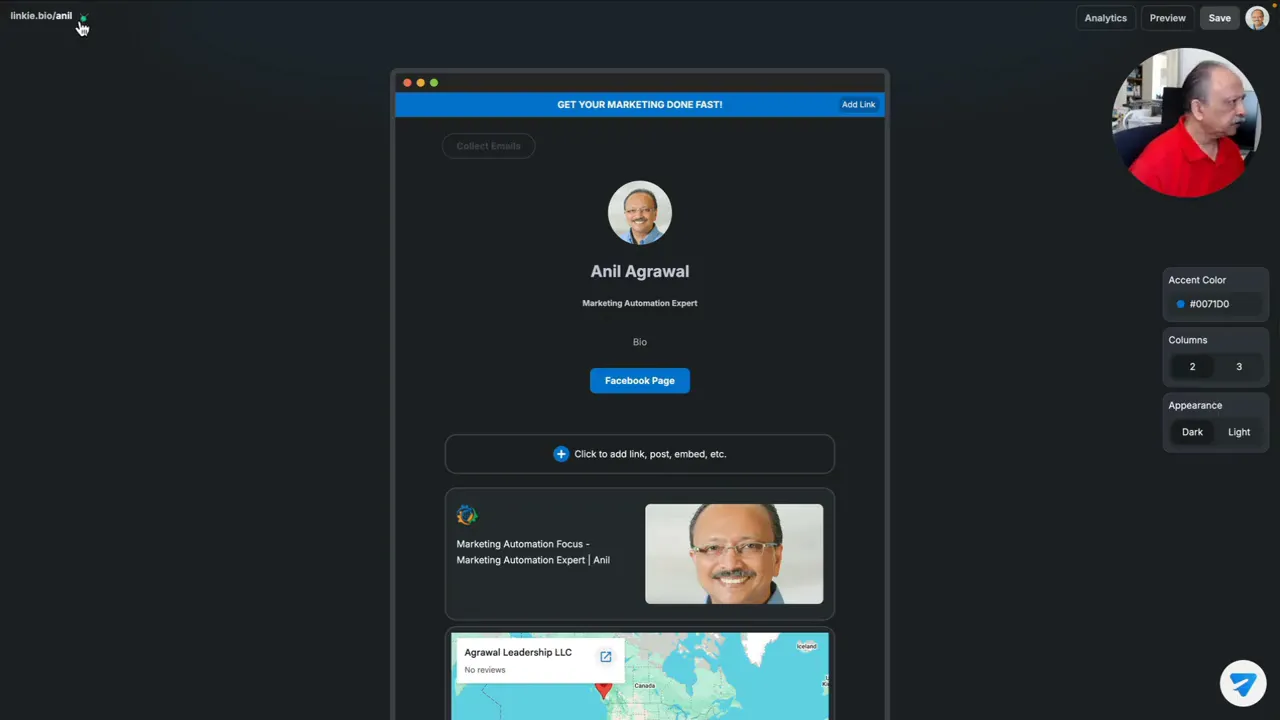
At the top right, you get the essentials:
- Analytics
- Preview
- Save
- Profile icon access
The profile image you assign to a Linkie page also appears in the top right area for that page, which keeps the experience consistent. It is a small detail, but it helps you stay oriented if you are managing more than one bio page.
The page structure is intentionally lightweight
Linkie does not overwhelm you with design controls. That is either a limitation or a strength, depending on what you want. For many users, it will feel like a strength.
At the top of the page, you can add a simple text banner. There does not appear to be a banner image option here, at least not from what I saw, but you can add text and assign a clickable link to it. That means the banner can function as a mini call-to-action and also be tracked.
Under that, you can add the core profile elements:
- Profile image
- Title, usually your name or brand
- Subtitle, such as a tagline
- Bio, for a short description
- Button, linking to a key destination
That primary button is useful if you want one main action at the top, such as visiting your website, booking a call, or going to a social platform.
On the styling side, the options are minimal. You can choose an accent color, and that color is used for things like buttons and the banner. There is also a light or dark appearance mode, which is a nice touch if you want a different visual feel without doing a full redesign.
This is clearly not trying to be a full-blown page builder. It is more of a focused, efficient link-in-bio app.
Email Collection: A useful feature I do not often see
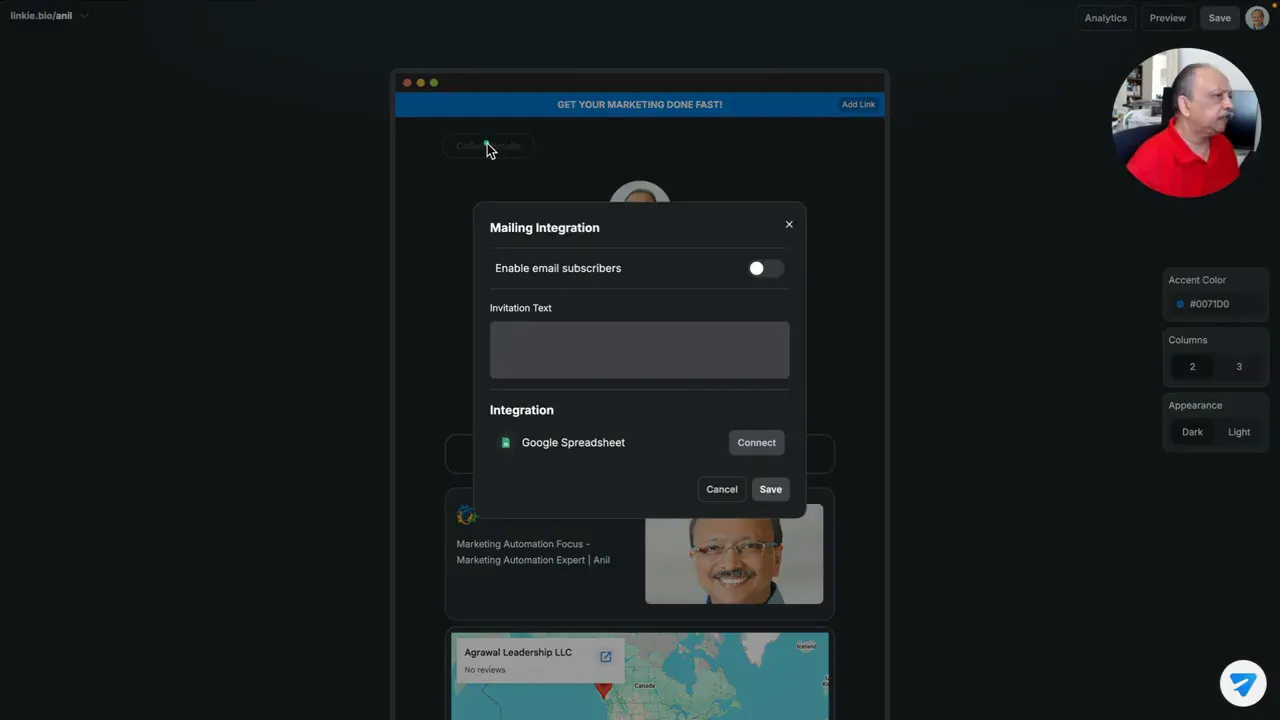
One feature that stood out to me was the built-in email collection option. If you want to turn your bio page into a lightweight lead generation tool, you can enable email capture and write your own invitation text.
Even more interesting, there is an integration with Google Sheets. I did not test that deeply, but the concept is very appealing. If it works the way it appears to, that gives you a simple way to collect and organize leads directly from your link-in-bio page without adding too much complexity.
For someone who wants more than just outbound links, this could be one of Linkie’s more compelling features.
The three content card types that power the page
The heart of Linkie is its card-based layout. You can add multiple cards, and from what I saw, there does not seem to be a restrictive cap for basic use. The three main card types are:
- Website link
- Social post
- Embed
1. Website link cards
This is the most straightforward option. You add a website URL, and Linkie can automatically fetch the featured image for that page. That makes the card more visual without forcing you to manually upload graphics for every link.
If your goal is to highlight your homepage, sales page, blog, landing page, or booking page, this is probably the card type you will use most often.
2. Social post cards
This is one of the more interesting features. You can paste the URL of a social media post, either your own or someone else’s, and display it as a card.
There is also a redirect option. So instead of sending someone to the original social post, you can redirect that click to a custom URL. That opens up some useful possibilities.
For example, you might show a social proof post or a promotional post on your bio page, but send clicks to a booking page, product page, or signup form instead.
3. Embed cards
Embed support adds a layer of flexibility. I tested it with a Google Maps embed from a Google Business Profile, and it worked well for displaying a map directly on the page.
That could be especially helpful for:
- Local businesses
- Clinics or studios
- Consultants with office locations
- Events and appointment-based services
Another small usability detail I appreciated was that if I pasted a URL into an embed field and then backed out, Linkie did not immediately wipe what I had entered. That kind of behavior matters. It reduces friction and makes editing less annoying.
Layout choices that are simple but practical
Linkie gives you a choice between two columns and three columns, although in actual use I found the two-column setup clearer and more visually balanced.
There are also card display styles you can switch between when hovering over a card’s layout controls. These include:
- A very small icon-style layout
- A row-style layout
- A default tile layout
- A more vertical single-column style
Out of those, the default tile design felt like the strongest option. It is clean, easy to scan, and ideal for showcasing several links or service categories.
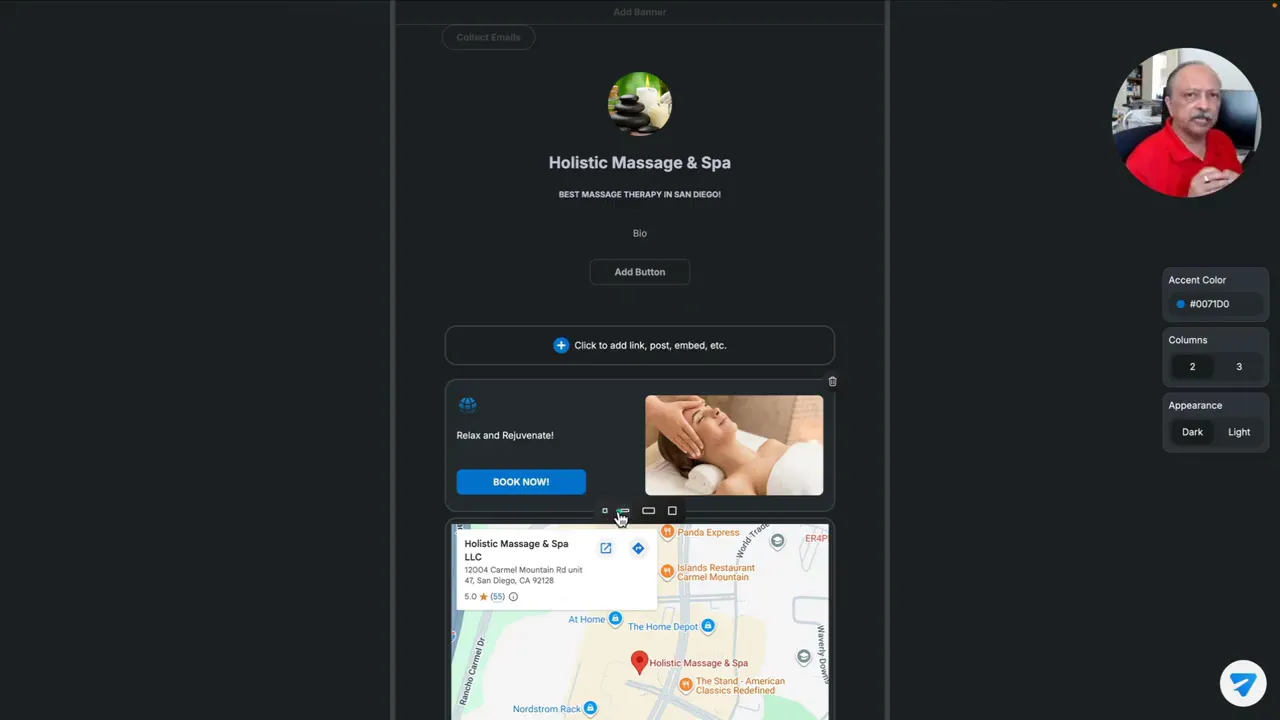
I also tested a service-based example where separate cards could represent different offerings. For something like massage therapy, coaching, consulting, or any business with multiple services, this is a good fit. You can create one card per service and keep everything organized without making the page feel cluttered.
Analytics that cover the basics without overcomplicating things
If you are using a link-in-bio tool seriously, you need at least basic click and impression data. Linkie includes an analytics section that tracks the clickable elements on your page.
That includes items like:
- Banners
- Buttons
- Link cards
- Redirected post cards
The reporting appears to focus on the essentials:
- Impressions
- Reach
- Clicks
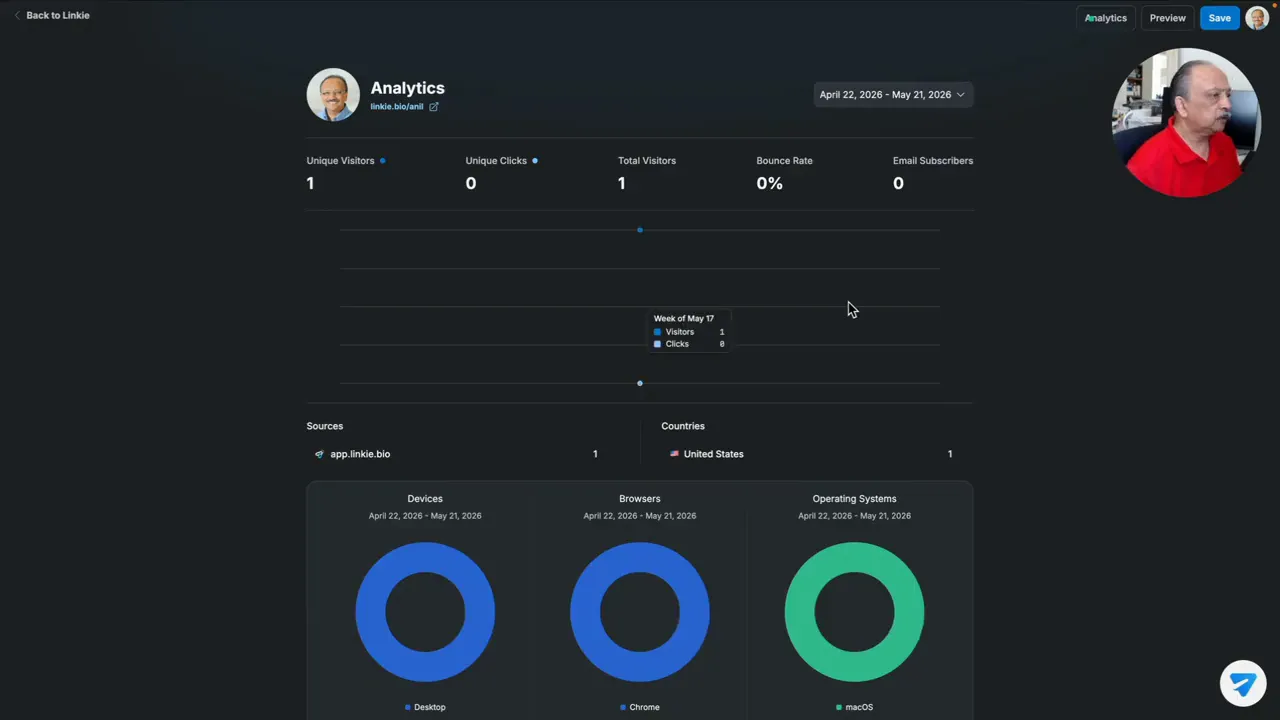
I like this approach for one reason. It gives you what most people actually need. You can see what is getting attention and what is earning clicks, without needing to decode a complicated dashboard.
For many users, that is enough to answer the most important question: What on my page is working?
Site settings and Custom Domain options
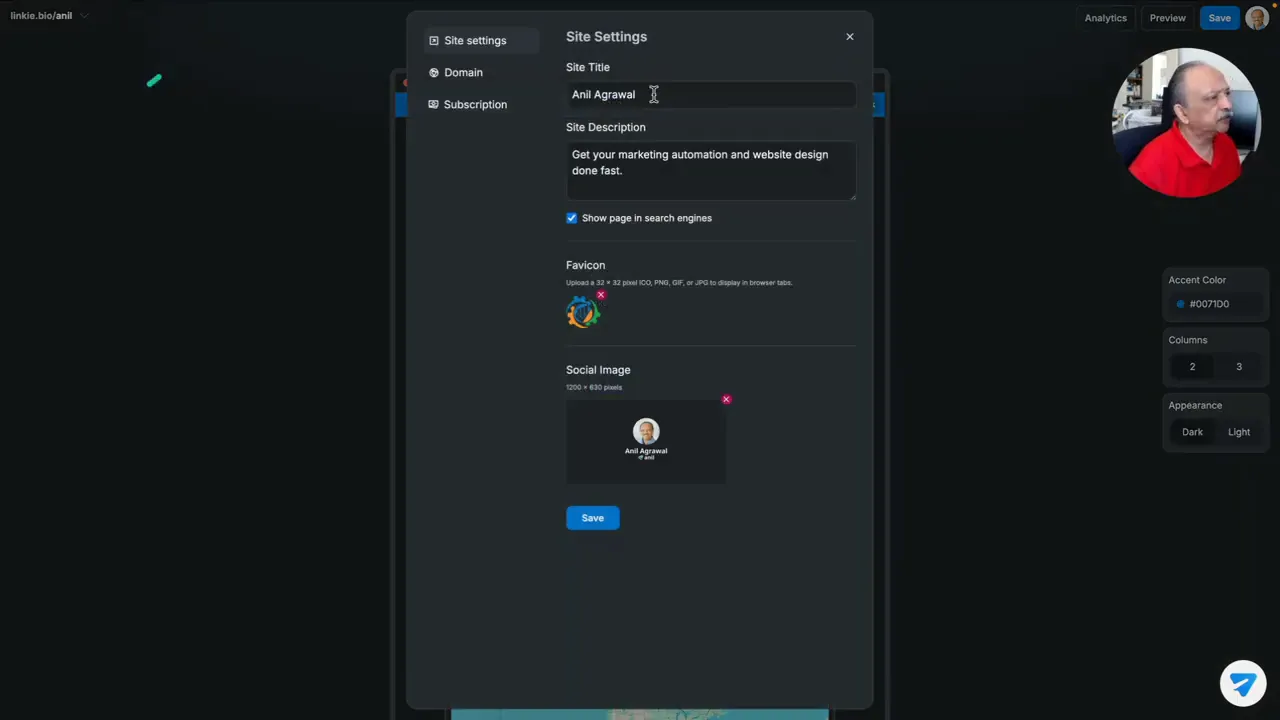
Beyond the visible design, Linkie includes a basic settings area for each page. You can adjust:
- Site title
- Site description
- Whether the page appears in search engines
- Favicon
- Social sharing image
That is helpful if you want your bio page to look better when shared and have at least some control over how it appears in search or previews.
On the domain side, the free option uses the Linkie domain and your chosen slug. Depending on your plan, custom domains or subdomains may also be available. I did not configure that in my own setup, but it is useful to know the option exists for branding.
Who Linkie is best for
After using it, I think Linkie is especially well suited for people who value speed and clarity over endless customization.
It makes sense for:
- Creators who want one clean page for social links
- Freelancers and consultants promoting services
- Local businesses that want links plus a map embed
- Anyone who wants basic analytics without complexity
- People who want to collect emails through a simple bio page
If your priority is building a heavily designed mini website, this may feel too lightweight. But if your priority is getting a professional bio page published quickly and tracking what happens next, Linkie does a lot right.
My overall take
The easiest way to describe Linkie is this: it removes a lot of the friction that usually comes with link-in-bio tools.
You create a page, add your identity, choose a color, add cards, publish, and start measuring results. That is the core experience, and it feels efficient.
I also think the simplicity helps prevent a common problem with marketing tools. Sometimes too many features create hesitation. You keep tweaking and never launch. Linkie feels more like a tool that gets you moving.
If you like exploring marketing tools that save time and reduce setup headaches, you can find more resources at Marketing Automation Focus.
FAQ
What is Linkie?
Linkie is a link-in-bio app that lets you create a simple landing page for your important links, social posts, embeds, and calls to action. It is designed to be easy to set up and manage.
Can I collect emails with Linkie?
Yes. Linkie includes an email collection feature, and it also offers integration with Google Sheets, which can be useful for basic lead capture and organization.
What kinds of content can I add to a Linkie page?
You can add website links, social post cards, and embeds. In the example I tested, I used a Google Maps embed, which worked well for a location-based use case.
Does Linkie include analytics?
Yes. It tracks basic metrics such as impressions, reach, and clicks for the clickable elements on your page.
Can I use my own custom domain?
Linkie provides a default link.bio URL with your custom slug. Based on the plan, custom domains or subdomains may also be available.
Is Linkie good for service businesses?
Yes, especially if you want to organize multiple services into separate cards, add a booking link, or embed a map for a physical location.
This article was created from the video Linkie Review | Is This the Easiest Link-in-Bio App? with the help of AI.